Things I Do To Make My iPhone Less Distracting
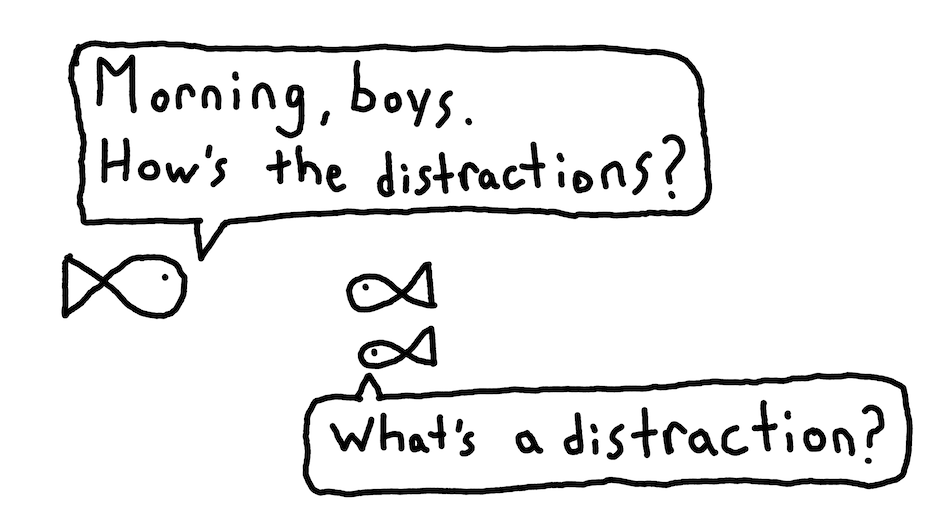
Indistractable provides invaluable tips on how to reduce the amount of focus stolen by your smartphone. Every pickup, every unlock, incurs a hidden cost. A non-zero chance to have your attention redirected from your original goal. Smartphones fit into nearly every facet of our modern lives and those chances start to add up. Left unchecked, these redirections can manifest into nasty time-sucking habits.
How do we prevent this from happening? By becoming more intentional on making the phone work for us, not the other way around. It’s not easy, but with a dash of intention, it’s doable. In this post, I’ll share some of the things that have helped me make my iPhone less distracting.
1. Setup Screen Time
If you can’t measure it, you can’t improve it, time to enable Screen Time. This will track your notifications, pickups, and screen time across all your apps. Having usage data will inform you where to make adjustments and see your progress over time. It even sends you a weekly notification of your daily average. I’m usually landing somewhere between 1.5 and 2.5 hours, but I question the accuracy of it’s measurements.
Another handy feature in Screen Time is scheduling downtime. I found it most useful to schedule downtime a couple hours before going to bed and an hour after waking up. This helps sitting on your phone while in bed and picking it up first thing in the morning. Charging your phone away from your bedside also helps break these habits. Snoozing alarms is also harder when the phone isn’t within arms length.
Screen Time has its own App Limits, but I don’t find these be effective. The problem is they are reactive rather than preventive. You don’t see anything until after you’ve wasted your block of time doomscrolling. Apps like ScreenZen prompt you before opening and track your total time. More on ScreenZen later.
2. Wrangle Notifications
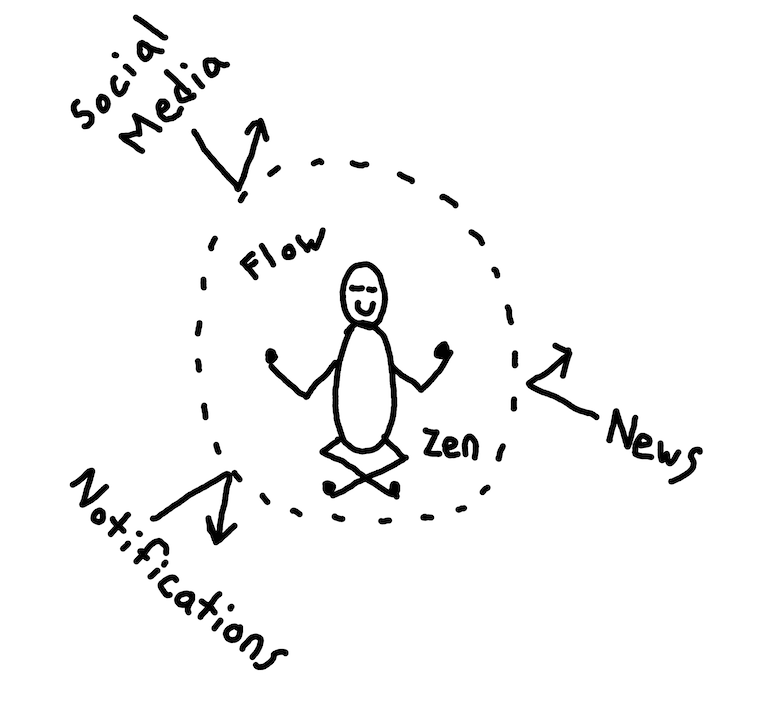
Become deliberate about which apps you allow to take hold of your attention. If you get the same notification five times and don’t do anything, consider disabling it altogether. You don’t need realtime updates about the news, who added you on linkedin, or what deal Amazon has in store for you. Rewire your new default to be “No, this application can’t send me notifications”. Disable those notification sounds too, save the Pavlovian conditioning for the dogs.
I try to limit immediate notifications to direct communication only. This means phone calls, texting, or direct mentions a couple apps. Social apps, like Signal or WhatsApp, will usually have a setting that limits notifications to direct messages or mentions only. Immediate noticiation doesn’t always equate to immediately actioning though. It’s ok to come back to a notification later.
All other notifications go into Scheduled Summary, which should be your new default for apps. The summary lets you batch notifications for certain times in the day, which I set twice 9:00, 12:00 and 18:00. And if you really need a break from it all, you can turn on Do Not Disturb mode. I match my Sleep one to the scheduled downtime from Screen Time.
The last suggestion I have is to receive emails in lieu of notifications where possible. Email is the best way to practice a slow information diet and it’s more readily available than you think. Even Slack let’s you receive emails. I don’t even bother enabling email notifications, checking them once or twice a day is more than sufficient.
The main ideas here are that you want reduce and batch while consuming when it works for you. None of this is revolutionary, people have been doing it with email for decades. When you think about it, notifications are just short spammy emails.
3. Installing an App Blocker
The blocker I’ve had the most success with is ScreenZen, which is free for both iPhone and Android. You can even get it on your macbook as well. If you end up loving it, you can give a tip to the developers. With the hours of time this has saved me, this app is worth it’s weight in gold.
It adds the smallest bit of friction as you open your apps. There’s a 5 second delay before opening along with the question “is this important?”. Great for those moments when you unconsciously navigate to a distracting app.
ScreenZen lets you create groups of 1 or more app(s) and specify how many times and how long you can open them for. Most of my apps are bucketed together in one bucket that allows 5 times a day for 10 mins per open. This way I bucket my phone access into small chunks and have a daily max. One feature that would be nice in the future is being able to target weekly limits.
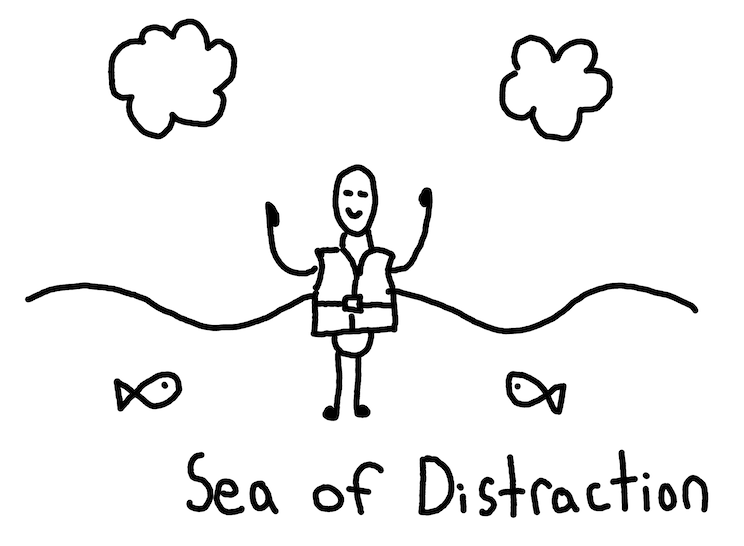
The analogy I like to think about is a life jacket. Too tired to swim, you drown. Too tired to avoid distractions, you scroll. You wouldn’t go swimming in the ocean without a life jacket, don’t scroll your phone without something to stop you.
4. Declutter your screen
I only have one home screen which includes:
- A screen time widget
- A photos widget
- 2 smile app launcher widgets
I like the smile app launcher instead of icons because it’s much less distracting and way more boring. It does require a bit more technical setup, but the minimal text is much less engaging than icons.
At the time of writing, Apple just released the new liquid glass look which has made my smile apps look terrible. Maybe it’s a blessing in disguise to dislike the look so much that I don’t use my phone as much.
If you can’t use smile, then I recommend hiding apps in folders as well as removing notification badges. To access all other applications I either swipe down and search or scroll to the App Library. Disabling the App Library completely would be a nice option to have. Out of sight, out of mind.
5. Make Unlocking Harder
This was the last piece that helped really cut out screen time:
- Disable using your face to unlock phone
- Create a longer unlock pin
I had built a bad habit of immediately unlocking the phone via swiping up. Disabling the face to unlock phone and having a longer pin adds the right amount of friction. There was an immediate drop in hours and pickups recorded in Screen Time after I did this. The only thing I need to truly have open quickly is the camera, which is still a one button click in this setup.
Conclusion
The war against distractions is won by many small battles. It’s too easy to slip into habitual scrolling, you see it almost everywhere you go. Smart phones are intentionally designed to be this addicting. Don’t blame yourself. Fortunately, preventing this from happening is easier than you think. The key is to sprinkle little bits of friction to stop those bad habits in their tracks.